Create files
Create text, Markdown, Office and source files in your current Finder folder.
 QuickRight
Download
 4.8
App Store rating
Create files, open Terminal or copy a path straight from Finder. Arrange the menu to fit the way you work.
Download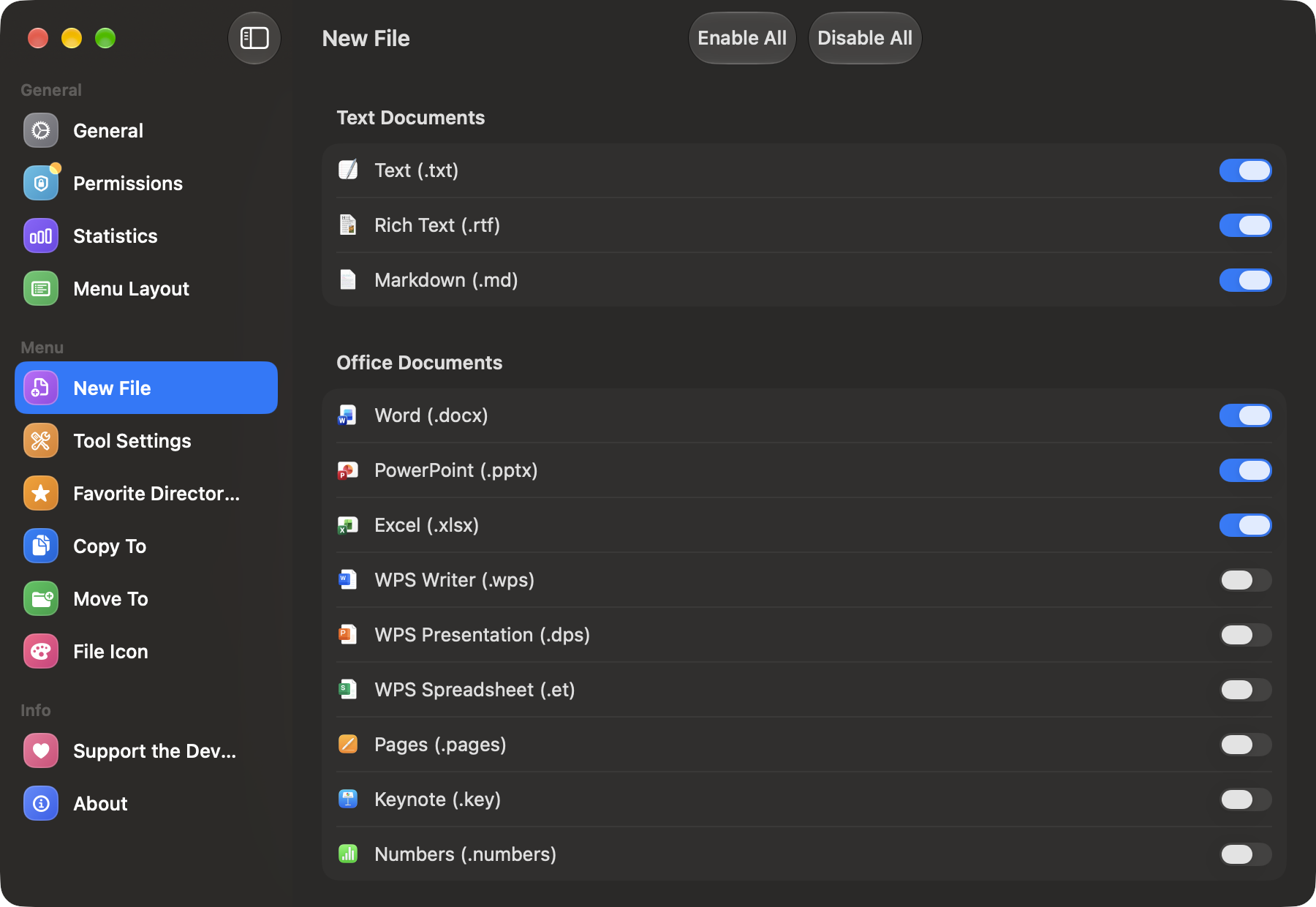
Create text, Markdown, Office and source files in your current Finder folder.
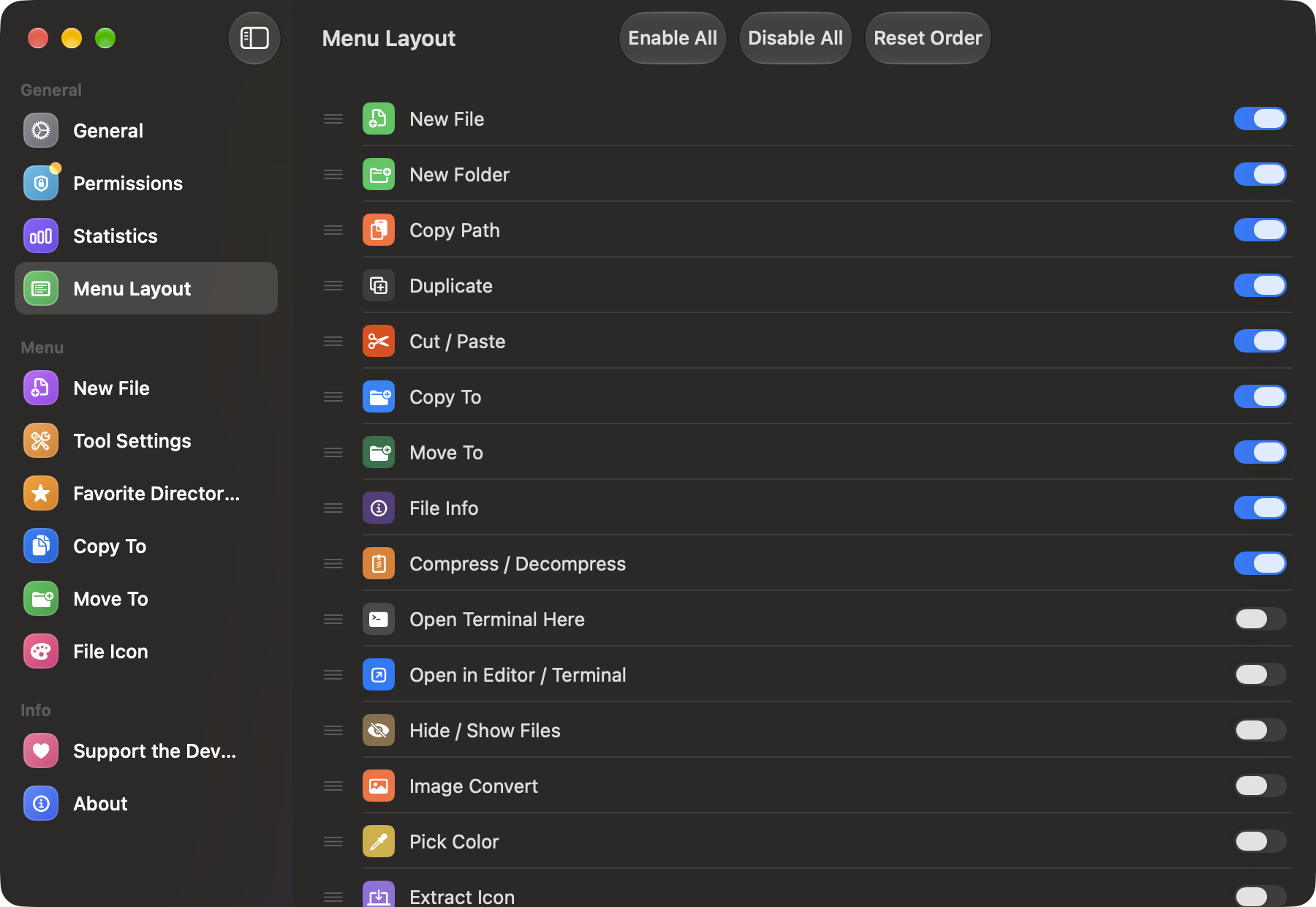
Reorder the menu and hide actions you rarely use.
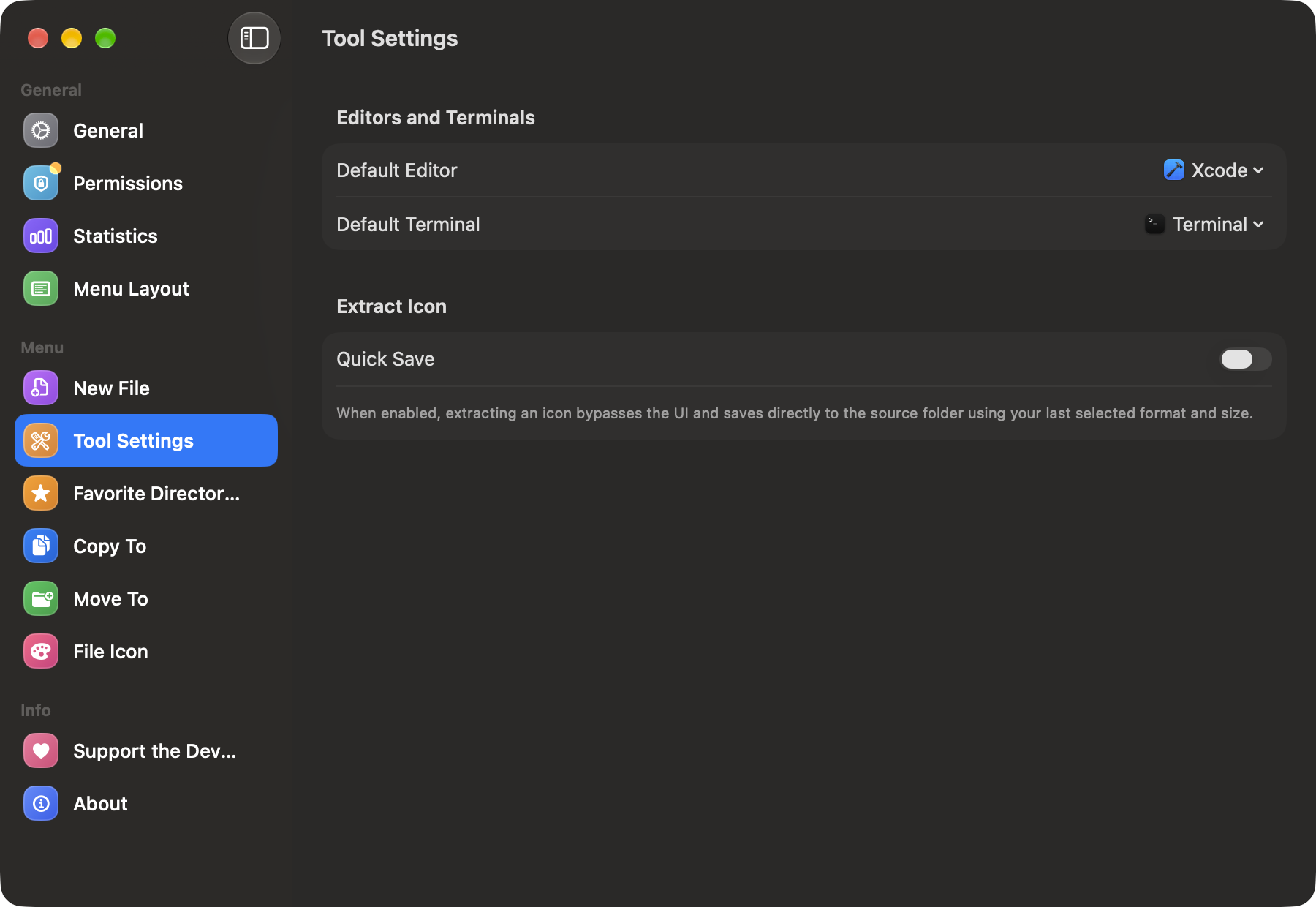
Launch Terminal in the current folder or open files in your preferred editor.
Copy a file or folder path to paste into Terminal or a message.
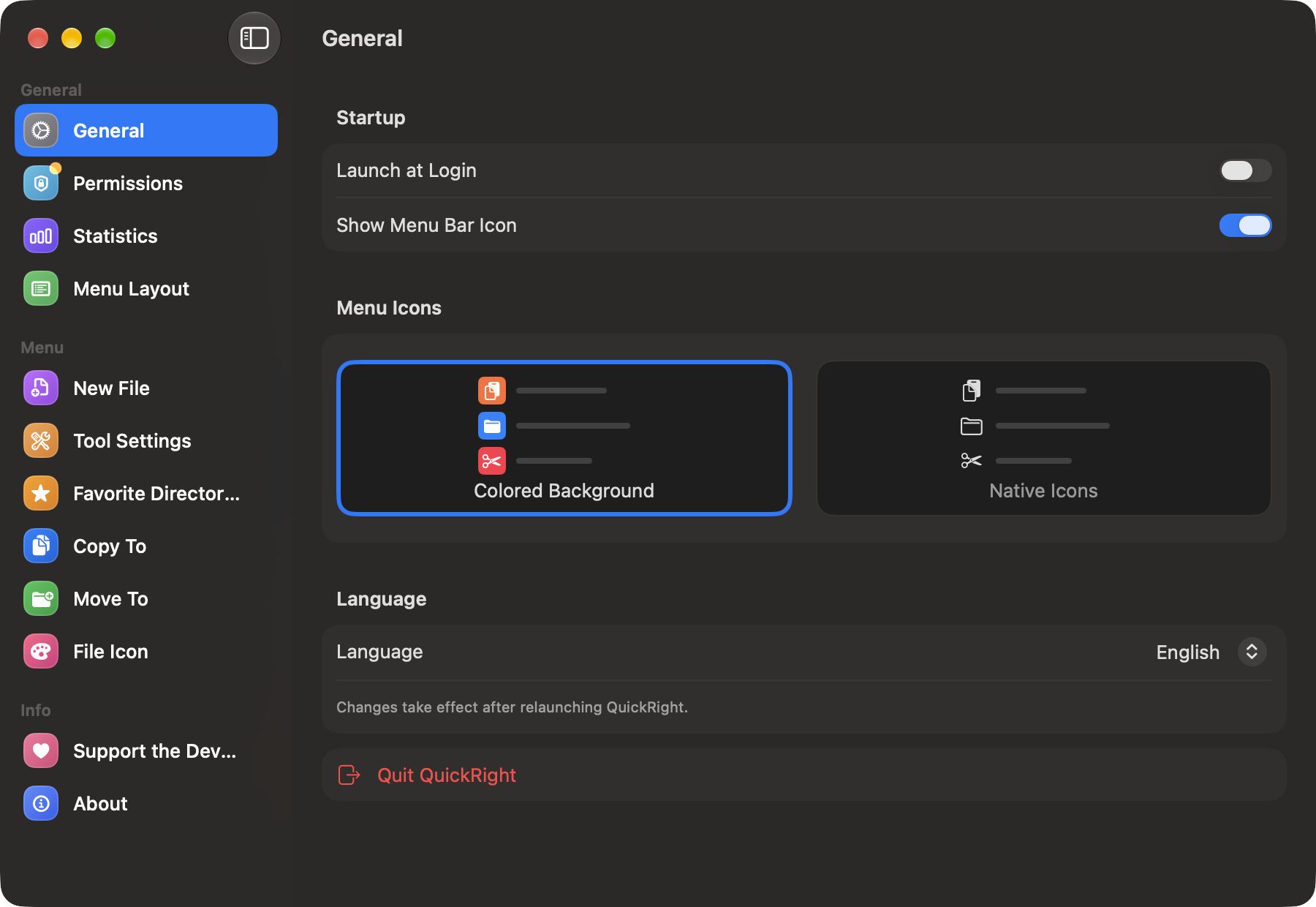
Choose colorful or native-style icons to scan the menu at a glance.
Keep your go-to file types and custom templates in the New File menu.
Add access to the local or iCloud Drive folders you work in.
Open QuickRight after installing. In Permissions, enable the Finder extension and add the folders you want to use.
QuickRight runs on macOS 14.0 Sonoma or later and is available free from the Mac App Store.
In Menu Layout, drag actions into the order you want and turn off the ones you don’t need.
Check that the Finder extension is enabled and that the current directory is within a folder you added.
Actions like creating files and copying paths run on your Mac.
Install the app and enable its Finder extension to get started.
Enable the actions you use and change their order or icon style whenever you like.